Put clips into DaVinci Resolve (free version)
This guide shows you how to send the clips you found in Potheon into DaVinci Resolve, ready to use, without cutting them short. It works with the free version of Resolve.
What you get: a folder in Resolve called Potheon picks. Each clip in it is the whole episode, with its start and end already set to your moment. Because the whole episode is there, you can always make a clip longer later, right inside Resolve.
This is in the Potheon desktop app. It needs DaVinci Resolve 18 or newer, installed on the same computer.
Words used in this guide
- Clip: a short piece of video, cut out of a longer episode or film.
- In point and out point: where a clip starts and stops. Resolve marks them on the clip; you can drag them later to make the clip longer or shorter.
- Media Pool: the area at the top left of Resolve that lists everything you can put on your timeline. A bin is a folder inside it.
Step 1: Pick the clips you want in Potheon
Search for what you're looking for. On each result you want, click the small square in the bottom-left corner of its picture. It turns pink with a tick. Pick as many as you like.
A bar appears at the top of the results saying how many clips you've picked.
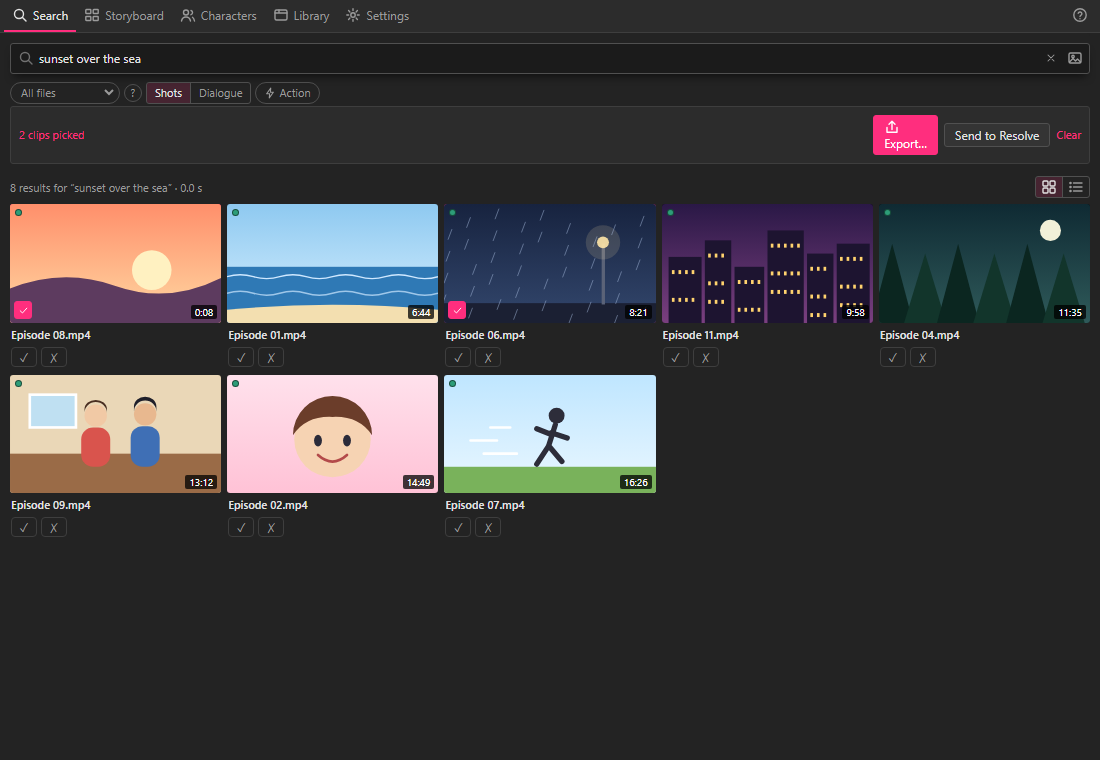
Step 2: Click "Send to Resolve"
In that bar, click Send to Resolve. After a moment Potheon says:
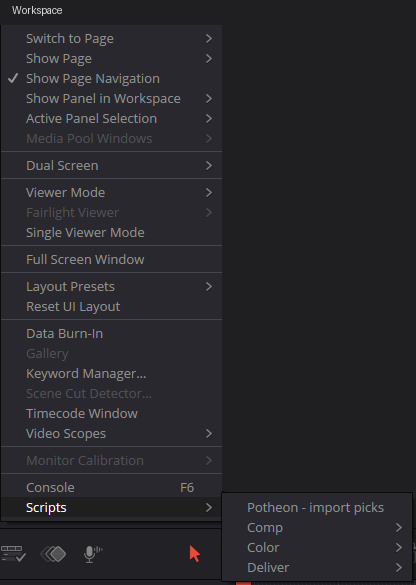
2 clips ready. In DaVinci Resolve, click Workspace › Scripts › Potheon - import picks: they go into the Potheon picks bin.

Step 3: In Resolve, open the project you're working on
Start DaVinci Resolve and open your project (or make a new one). If Resolve was already open before you first used Send to Resolve, close it and open it again once, so it finds the new menu item.
Step 4: Click Workspace › Scripts › Potheon - import picks
At the very top of Resolve's window, click Workspace. Near the bottom of the menu, point at Scripts, then click Potheon - import picks.
Resolve switches to its Edit page and opens a bin called Potheon picks in the Media Pool. Your clips are in it. Each one is named after what you searched for, then the episode and the time of the moment, for example crying in the rain · Episode 03 12:41.
Step 5: Use a clip
- Double-click a clip to open it in the viewer on the left. Its in and out points are already set around your moment. (The viewer may show the start of the episode at first: press Shift + I to jump to your moment.)
- Drag the clip onto your timeline. Only the part between the in and out points goes on, just like any clip in Resolve.
- Need more? On the timeline, drag the clip's edge outwards. The rest of the episode is there, so it keeps going.
Good to know
- Picks from the same episode each get their own clip in the bin. If Resolve can't make a second copy, the extra moment is added as a marker on the clip instead, and Resolve tells you so.
- "Nothing to import": you haven't clicked Send to Resolve in Potheon yet (or it was a while ago and the list was used). Pick clips and click Send to Resolve again.
- "The picks' episodes weren't found": the drive with your episodes isn't connected. Connect it and run the script again.
- Prefer a ready-made timeline? In Potheon, click Export… instead and choose Timeline XML. Then in Resolve click File › Import › Timeline… and pick the file Potheon saved. You get a new timeline with your clips in a row.