Make a clip longer or shorter before you use it
When Potheon finds a moment, it picks where the clip starts and ends for you. Sometimes you want a little more (the line before, or the reaction after) or a little less. This guide shows you how to change that before the clip goes into your editing program.
Why do it here? If you drag a clip into CapCut, Alight Motion or Vegas, you get a separate video file cut to that length. Your editor can make that file shorter, but it can never make it longer, because the extra seconds aren't in it. Setting the length here first means you never have to go back and find the moment again.
This is in the Potheon desktop app. The Potheon panel inside Premiere Pro and After Effects doesn't need it: there the clip stays linked to the whole episode, so you can lengthen or shorten it on your timeline as usual.
Words used in this guide
- Clip: a short piece of video, cut out of a longer episode or film.
- Start and end: where your clip begins and stops. Editing programs often call these the in point and the out point.
- Playhead: the thin white line that shows which moment of the video you're seeing right now.
Step 1: Search, then find the result you want
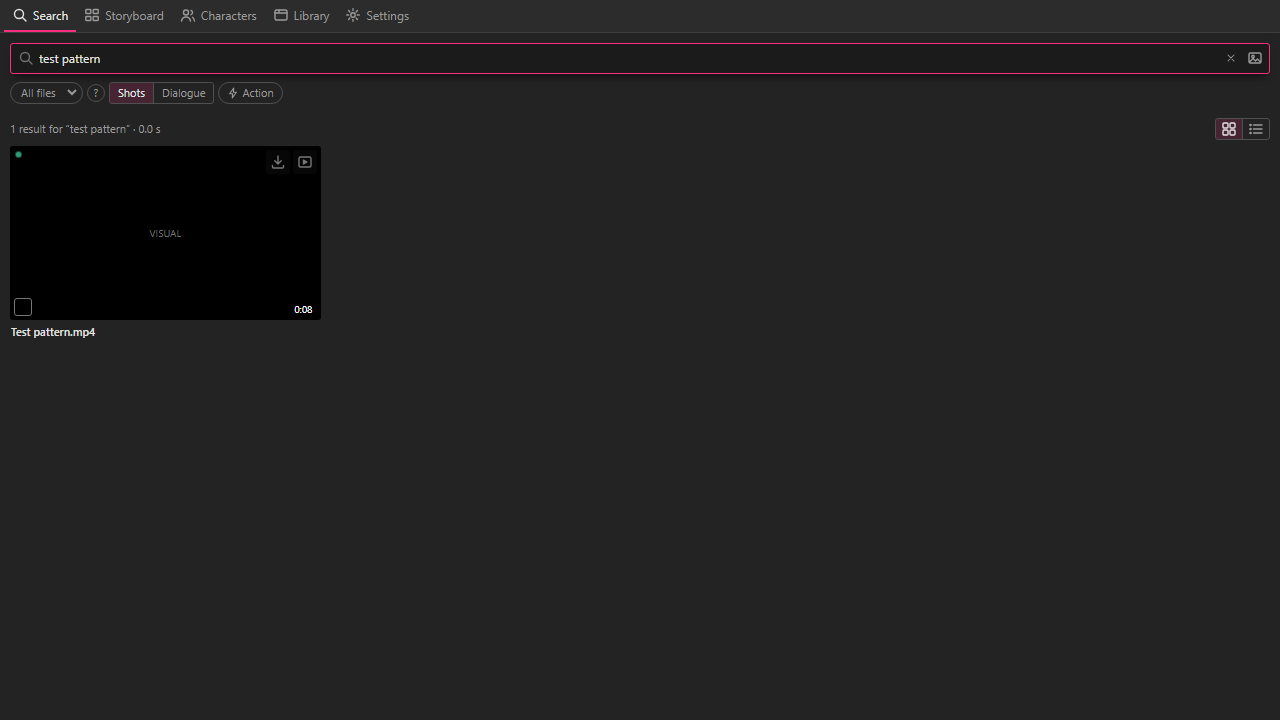
Type what you're looking for in the search box at the top and press Enter. Your results appear underneath as little pictures.
Step 2: Double-click the result to open the preview
Double-click the picture. It starts playing, and a dark bar appears along the bottom of it with the trim controls.
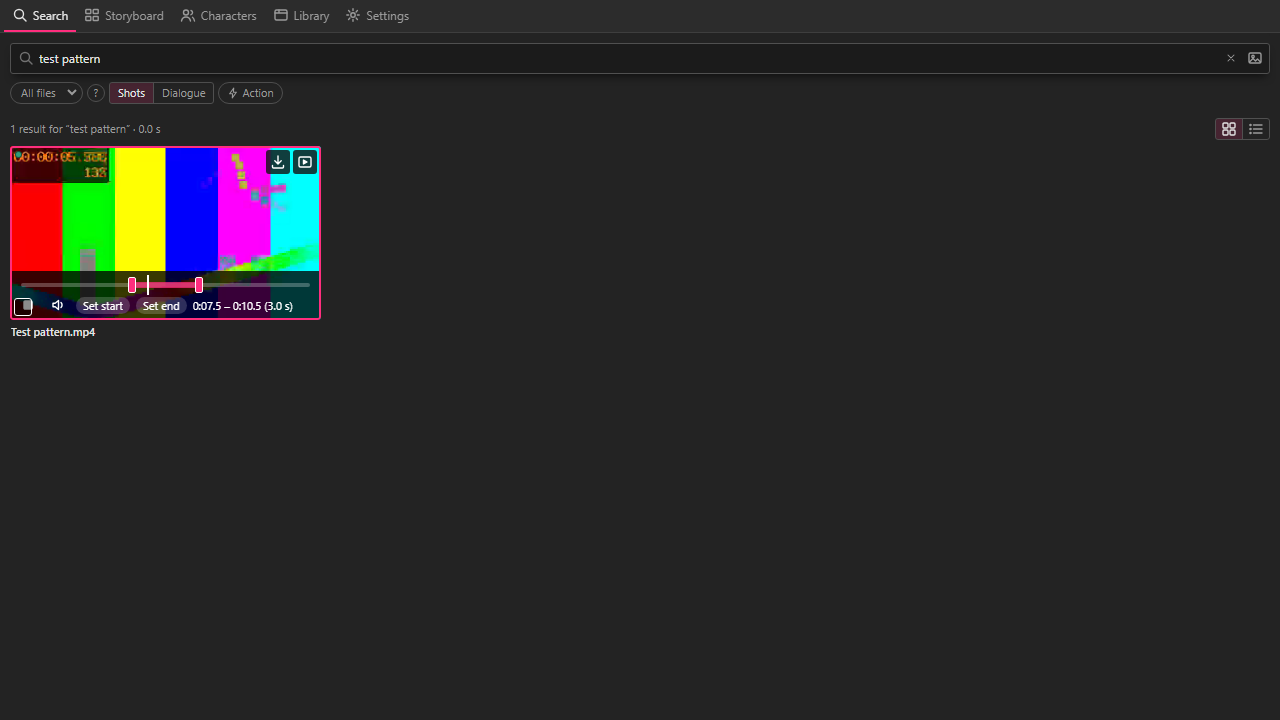
Here's what you're looking at, from left to right along the bottom:
| What you see | What it does |
|---|---|
| ▶ / ■ | Play and Stop. Clicking the picture does the same. |
| 🔈 | Turns the sound on or off. |
| Set start | Makes the clip start where the playhead is now. |
| Set end | Makes the clip end where the playhead is now. |
| 0:07.5 – 0:10.5 (3.0 s) | Where the clip starts and ends in the episode, and how long it is. |
And on the bar just above them:
- The pink part is your clip.
- The two pink handles at either end of it are the start and the end.
- The white line is the playhead.
- The grey parts either side are a few extra seconds you can stretch the clip into.
The preview plays your clip over and over, from its start to its end, so you can hear exactly what you'll get.
Step 3: Drag a handle to make the clip longer or shorter
Put your mouse on the right-hand pink handle (the end), hold the left mouse button down, and drag it to the right to make the clip longer, or to the left to make it shorter. Let go when it's where you want it. The left-hand handle (the start) works the same way.
The times next to the buttons change as you drag, so you can see the new length.
Step 4 (another way): Set the start or end at an exact moment
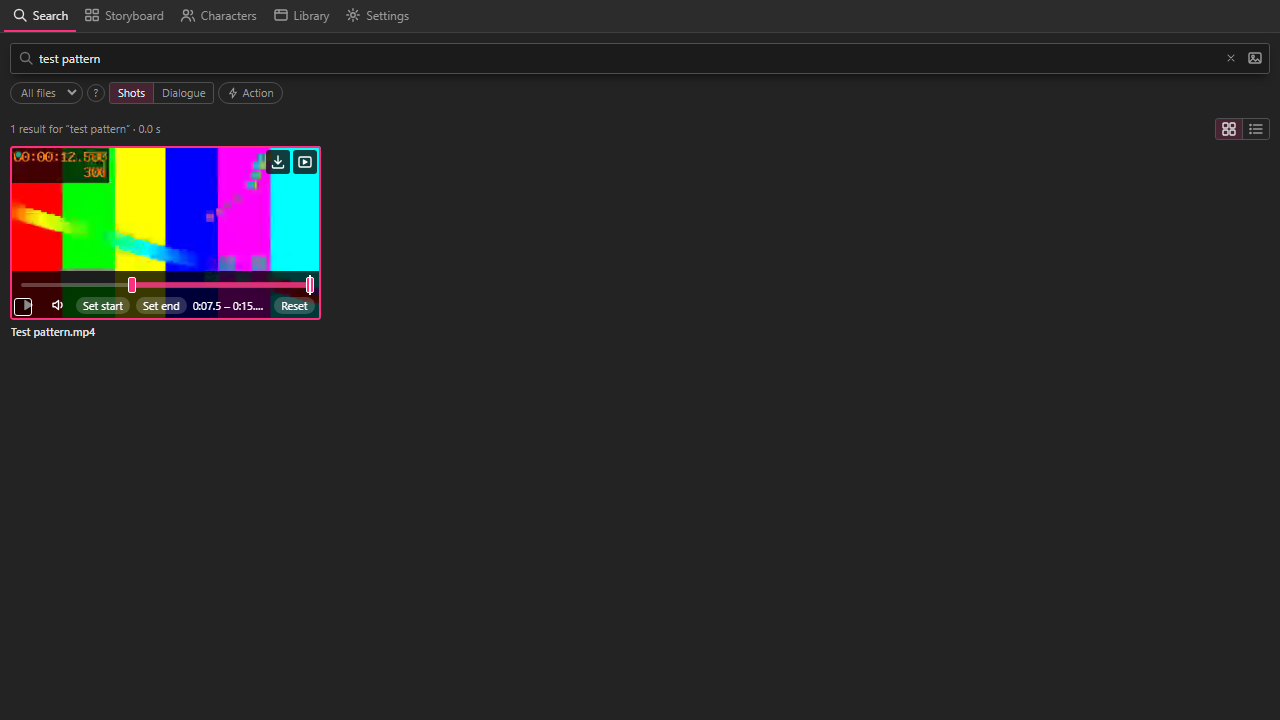
If you'd rather pick the exact frame:
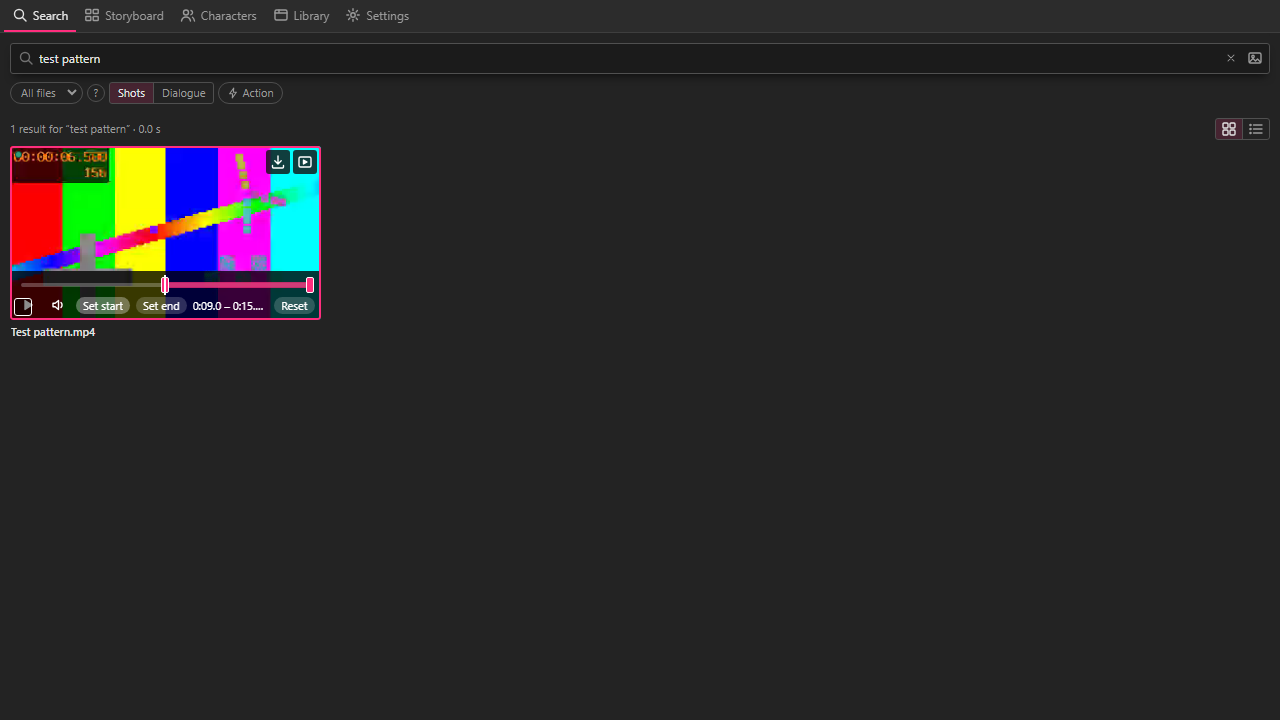
- Click anywhere on the bar, or drag along it, to move the playhead (the white line). The picture shows that moment.
- When you're on the right moment, click Set start to make the clip begin there, or Set end to make it stop there.
Keyboard shortcuts (while the preview is open and you're not typing in the search box):
| Key | What it does |
|---|---|
| Space | Play or stop |
| I | Set the start at the playhead |
| O | Set the end at the playhead |
These are the same keys most editing programs use, so they'll feel familiar later.
Step 5: Use the clip as usual
That's it: Potheon remembers your new start and end for this result. Whatever you do next uses them:
- Dragging it out gives a video file of exactly that length.
- Picking it for export (the tick in the corner) exports exactly that part in the XML or EDL file.
Changed your mind?
Click Reset at the right-hand end of the controls. The clip goes back to the start and end Potheon picked. Reset only appears after you've changed something.
Good to know
- You can stretch a clip up to 5 seconds past where Potheon found it, on either side. For more than that, open the episode in your editing program.
- The shortest clip you can make is a fifth of a second.
- Your changes are kept until you close Potheon, even if you search for something else and come back to the same result.