Get started with Potheon
This guide takes you from nothing to your first search: installing Potheon, telling it where your episodes are, and finding a moment by describing it. It takes about ten minutes, plus the time your first scan needs.
How it works: Potheon watches your episodes once, on your own computer, and keeps notes on what's in them. After that you type what you're looking for ("crying in the rain", or a line someone says) and it shows you the moments that match. Your footage never leaves your computer.
Potheon runs on Windows 10 (64-bit) and Windows 11.
Words used in this guide
- Scan: Potheon going through your episodes once to learn what's in them. Until a file is scanned, you can't search it.
- Index: Potheon's notes from the scan: what's said, what's seen, who's in each shot. It's kept in a folder on your computer.
- Library: a folder of episodes (or a set of videos) that you've added to Potheon.
- Shot: one continuous piece of video, from one cut to the next.
- Dialogue: the words people say (and subtitles).
- Clip: a short piece of video, cut out of a longer episode or film.
Part 1: Install Potheon
Step 1: Download the installer
Open the download link in your beta invite e-mail. The file is called something like Potheon-0.2.1-x64-setup.exe and is about 120 MB.
Step 2: Run the installer
Double-click the file you downloaded.
Windows may show a blue box saying Windows protected your PC. That's because beta versions aren't signed yet. Click More info, then Run anyway.
Then go through the installer:
- Read the licence agreement and accept it.
- Choose whether to install Potheon for everyone on this PC or just for you. Either is fine. (For everyone, Windows asks for permission.)
- Keep the suggested folder and click Install.
- At the end, leave Launch Potheon ticked and click Finish.
The installer also adds the Potheon panel to Premiere Pro and After Effects, if you have them. If one of them was open, close it and open it again later.
Part 2: The first time you open it
Step 3: Accept the terms
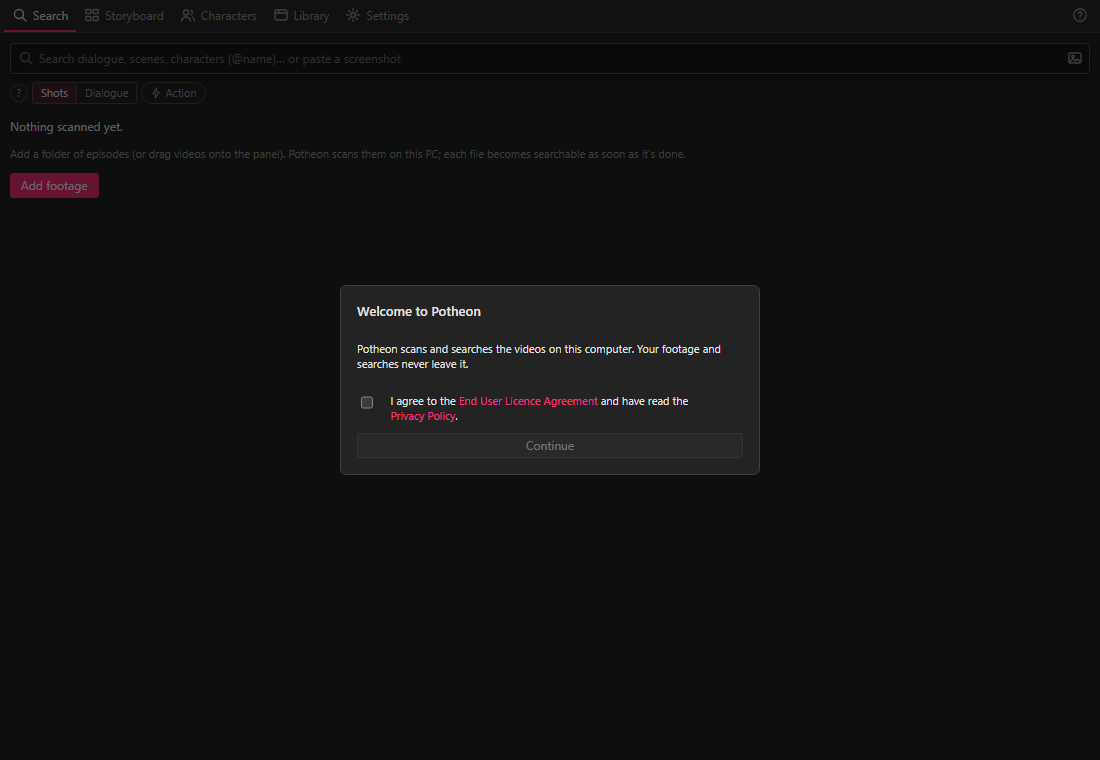
Potheon opens with a welcome box. Tick the box to agree to the licence agreement and the privacy policy (click their names to read them), then click Continue.
Step 4: Take the tour (or skip it)
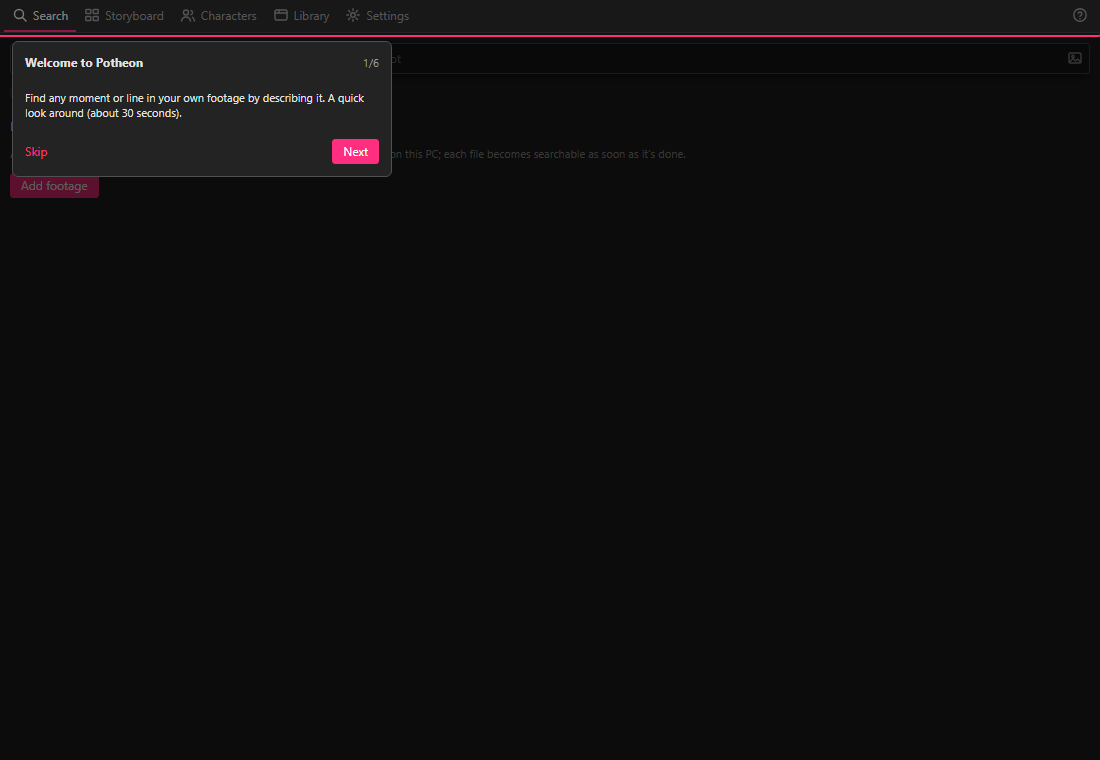
A short tour points at the main parts of Potheon. Click Next to go through it, or Skip. You can see it again any time: Settings, then Replay the tour near the bottom.
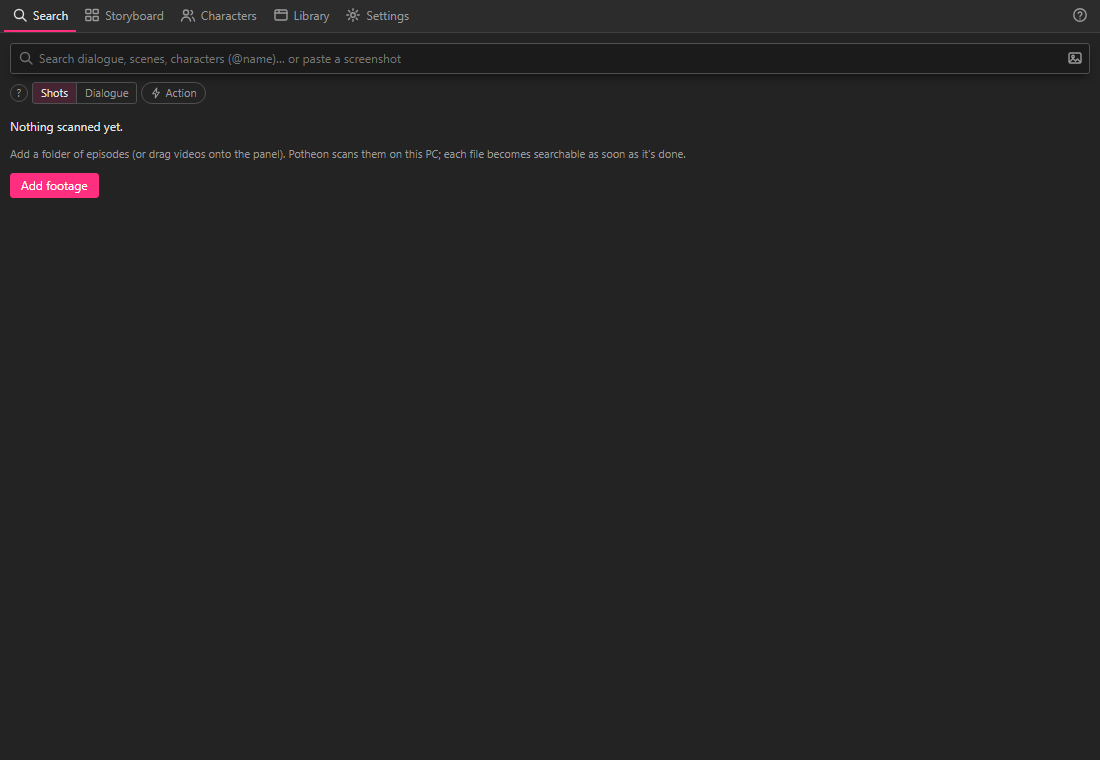
Along the top you now see five tabs: Search, Storyboard, Characters, Library and Settings. The ? at the far right opens these guides.
Step 5: Enter your licence key (beta testers)
Without a key, Potheon is on the Free plan: 1 hour of new footage a month (3 hours in your first month). Your beta invite has a key that unlocks Creator, which has no monthly limit and adds characters and exports.
- Click the Settings tab.
- At the top, under Licence, click in the box that says Licence key (from your purchase e-mail) and paste your key.
- Click Activate.
The label at the top right of the Licence section changes from Free to Creator.

Step 6 (optional): Choose where the index is kept
Potheon keeps its index on your C: drive unless you tell it otherwise. With the AI models it needs a few gigabytes to start with, and about 1 GB more for every 100 hours of footage. If your C: drive is small or nearly full, move it before your first scan:
- In Settings, scroll down to Storage. It says where the index is now ("Stored in …").
- Click Change location… and choose a folder on a bigger drive. A fast drive (an SSD) is best.
- Click Move. Potheon moves its files and restarts there.
Step 7 (optional): Leave the quality on Automatic
In Settings, Search quality is set to Automatic: Potheon checks your computer and picks what it can run well. Leave it as it is to start with.
Part 3: Add your footage
Step 8: Open the Library tab and type the show's name (optional)
Until you add footage, the Search tab says Nothing scanned yet. Click Add footage there, or click the Library tab at the top: both take you to the same place.
In the Library tab, if the episodes you're about to add are all from one show, type its name in the box that says Show for clips you add (optional). This helps Potheon name the characters, and lets you search one show at a time later. If the folder mixes several shows, leave the box empty.
Step 9: Click Add, then Folder…
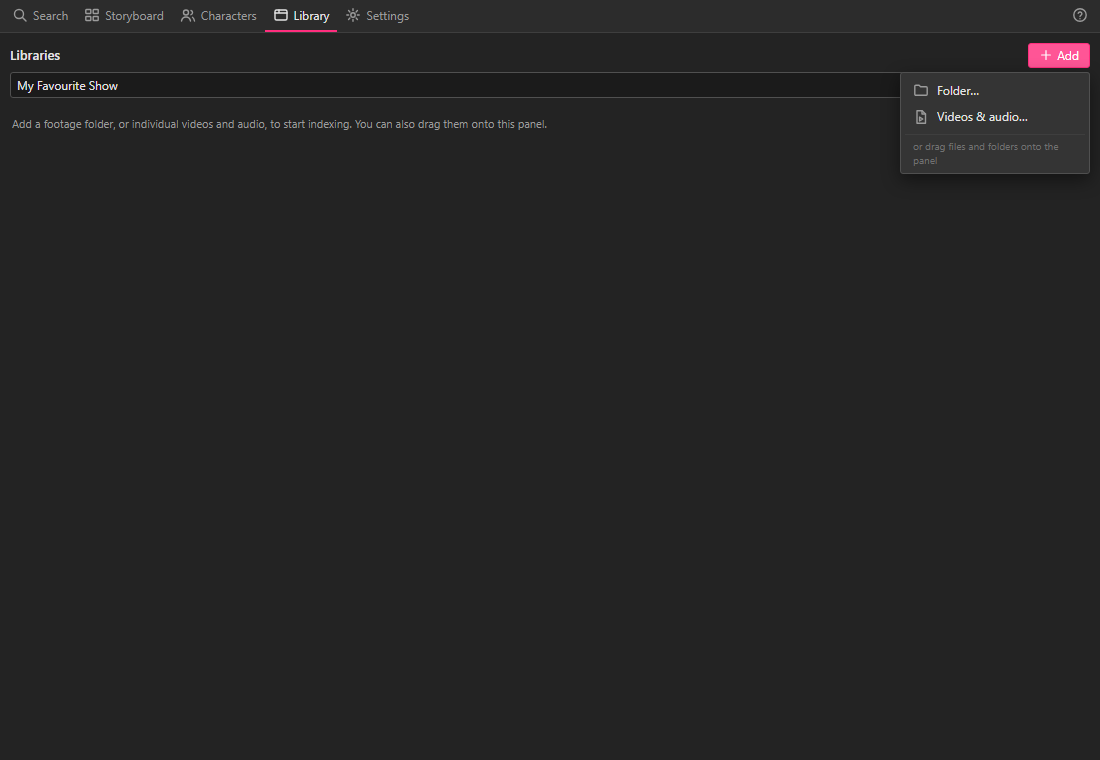
Click the pink + Add button at the top right, then Folder…. Pick the folder with your episodes and click Select Folder.
To add single videos instead, click Videos & audio…. You can also drag folders or videos from File Explorer straight onto the Potheon window.
Step 10: Let the first scan run
Potheon starts scanning straight away. The card for your folder shows how it's going:
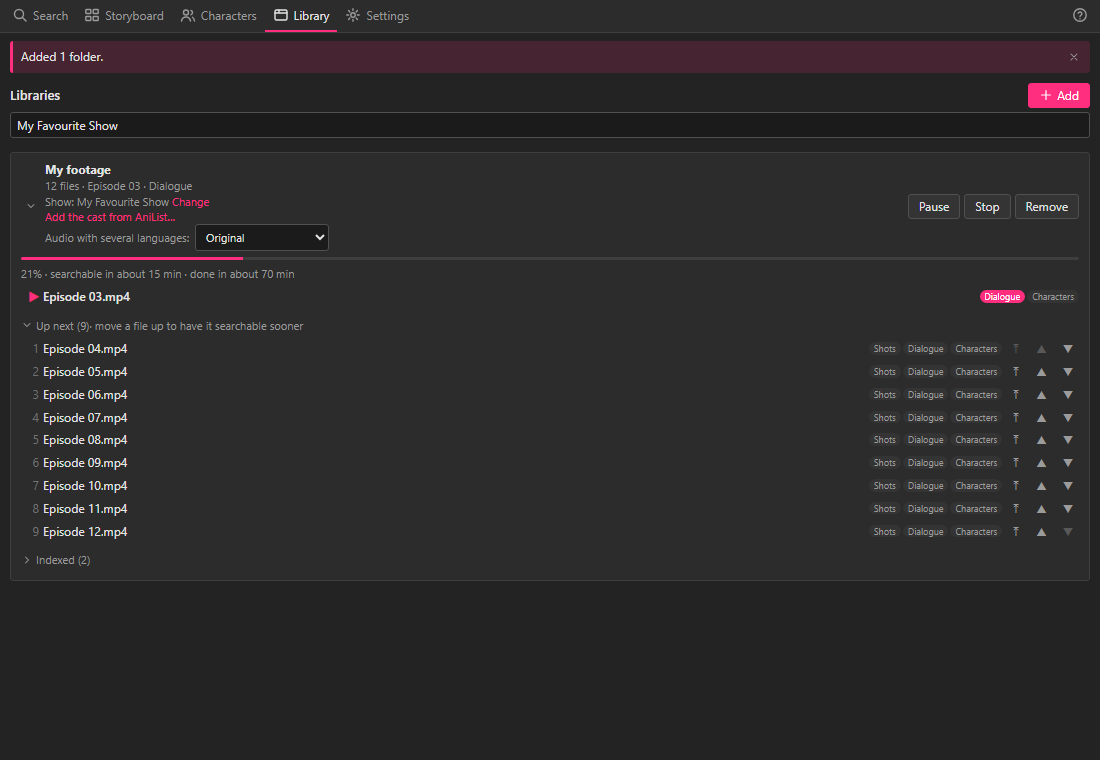
- The line under the pink bar says how far it's got, when you can start searching ("searchable in about 15 min") and when the whole folder will be done.
- The file with the pink ▶ is being scanned now. The labels next to it (Shots, Dialogue, Characters) are the steps it still has to do.
- Up next lists the files waiting. To have a file ready sooner, click ⤒ next to it to scan it next.
- Pause stops for now and Resume carries on. Stop ends the scan; Rescan later continues where it stopped.
The first time, Potheon also downloads its AI models (about 2 GB), so the first file takes longer.
You don't have to wait for the whole folder. Each episode can be searched as soon as it's done. The scan carries on in the background while you search or edit, and when you close the window (Potheon stays in the tray at the bottom right of your screen, see Use the Potheon desktop app).
Part 4: Your first searches
Step 11: Open the Search tab
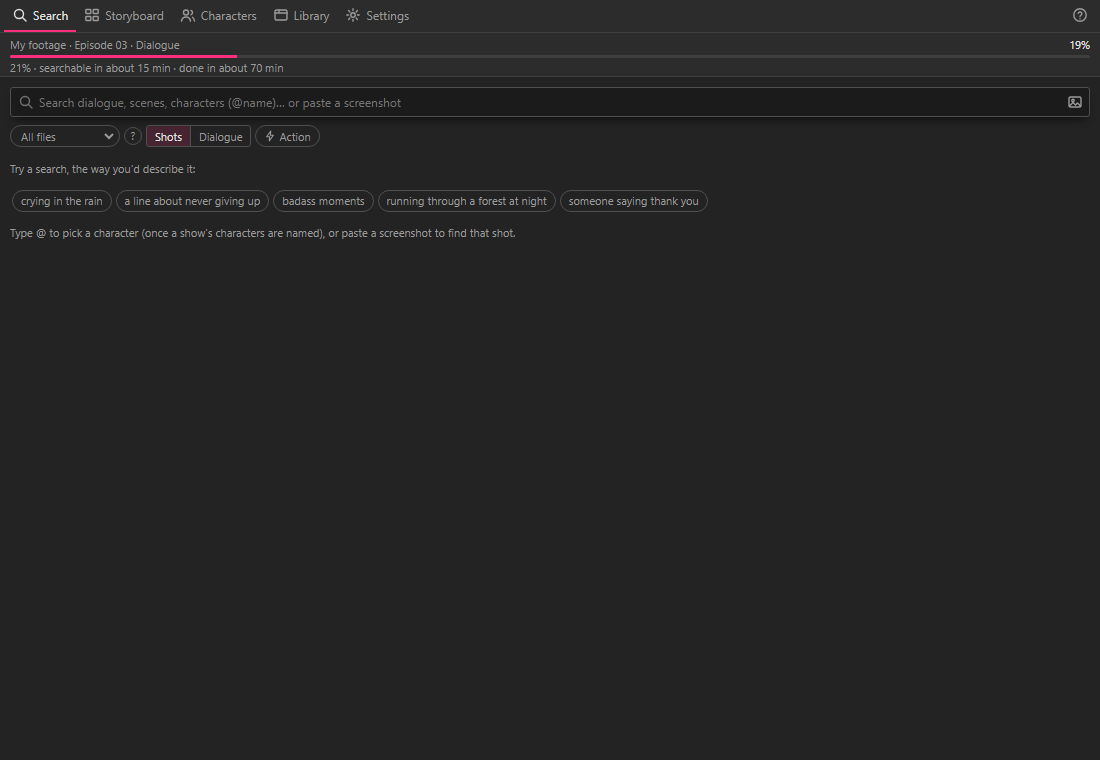
Click the Search tab. While a scan is running, a thin bar at the top shows its progress (click it to go to the Library).
Under the search box there's a switch with two sides:
- Shots finds what you can see: a moment, a place, a mood, a colour.
- Dialogue finds what's said: a line, a quote, or what people talk about.
If you're not sure what to type, click one of the examples.
Step 12: Search for something you can see
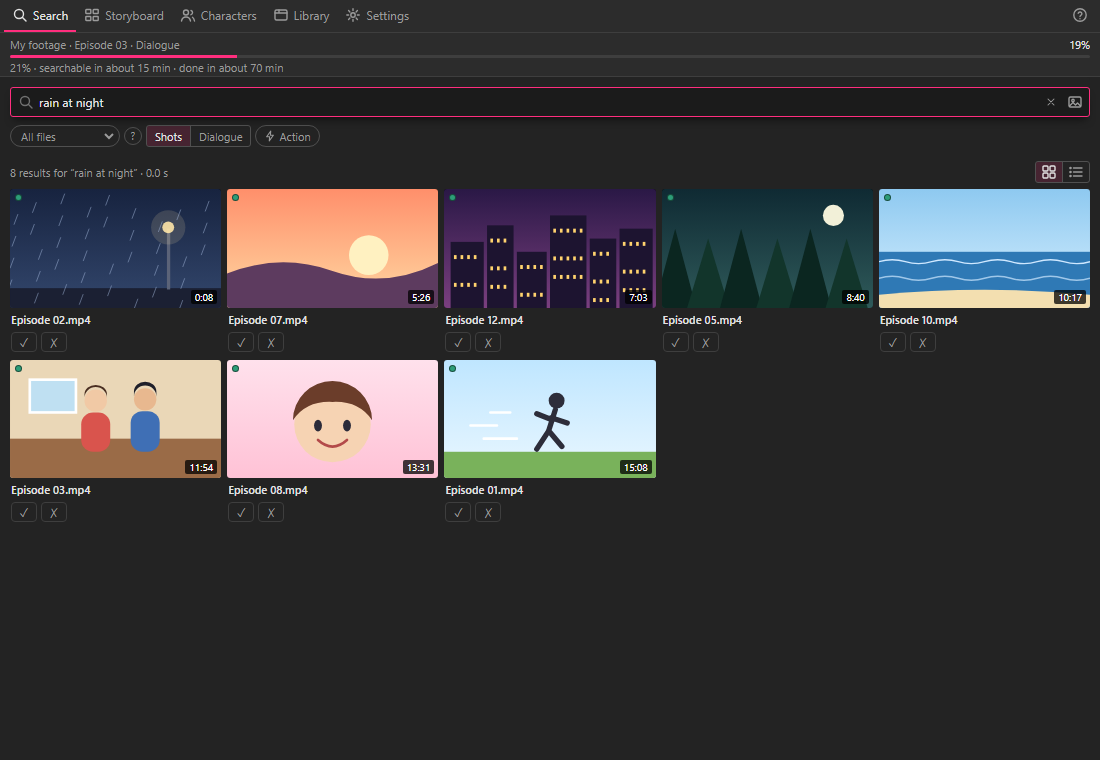
Make sure Shots is picked. Click in the search box, describe the moment the way you'd tell a friend ("rain at night", "two people talking in a kitchen", "a character smiling") and press Enter.
The results appear as pictures, best match first. Under each one is the file it's from, and in the corner, the time in that file.
Step 13: Search for a line
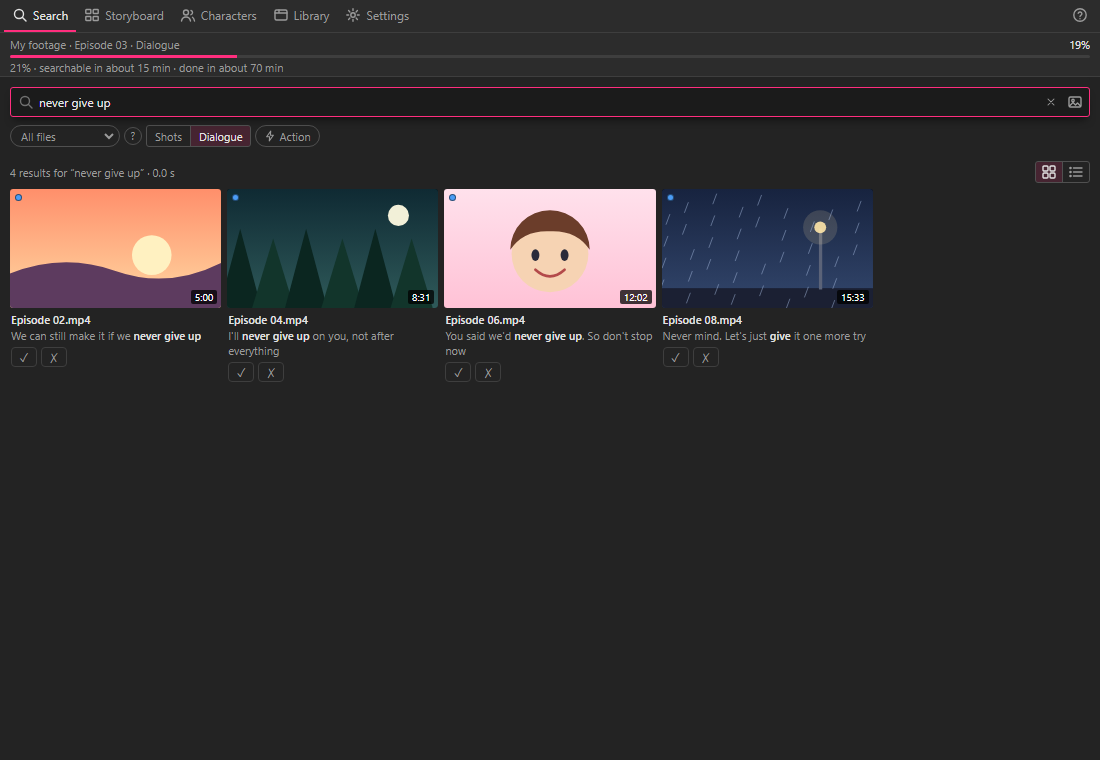
Click Dialogue, type the words you remember and press Enter. You don't need the exact line: Potheon also finds lines that mean the same thing. The words that match are in bold.
Step 14: Narrow it down (optional)
Next to the switch:
- All files: pick one episode to search only that file.
- All shows (appears once Potheon knows which show your files are from): search one show only.
- Action: only shots with lots of movement, such as fights, chases and fast camera moves. Click it again to turn it off.
- To leave something out, put a minus in front of it:
fight -indoors.
Step 15: Search for a character with @
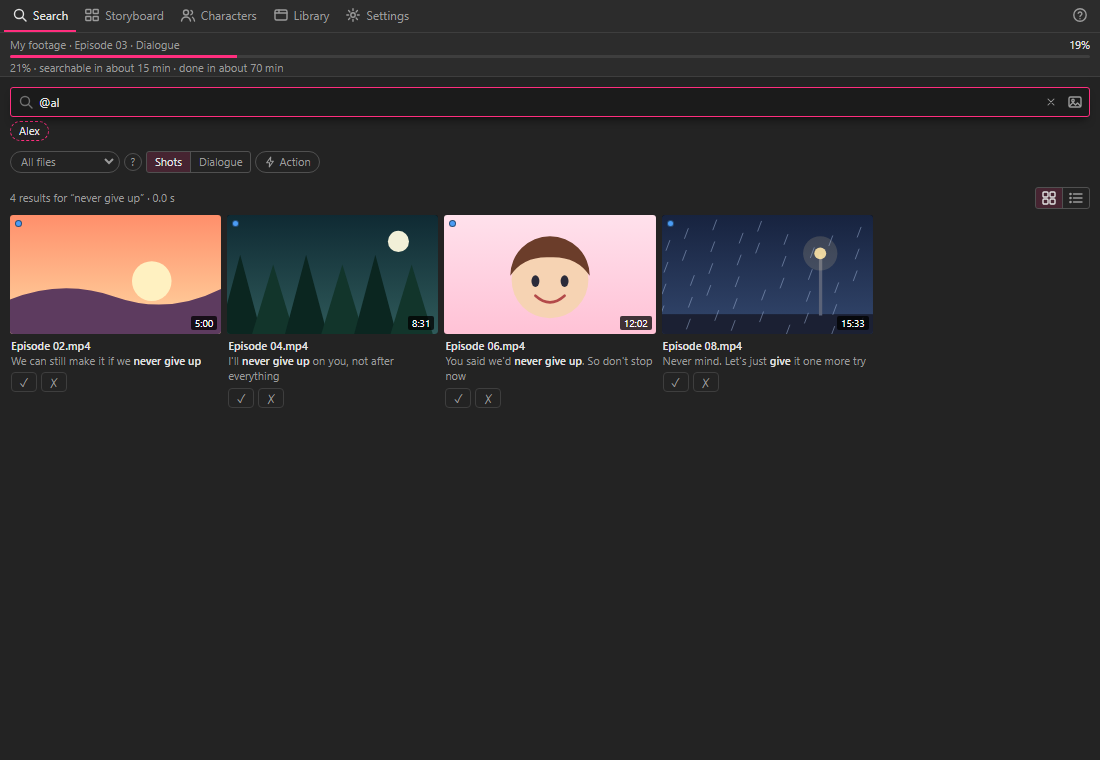
Type @ and the start of a character's name. The names that match appear under the box; click one. It becomes a pink label next to the switch, and your search only shows shots with that character. Now type what they're doing ("smiling") and press Enter.
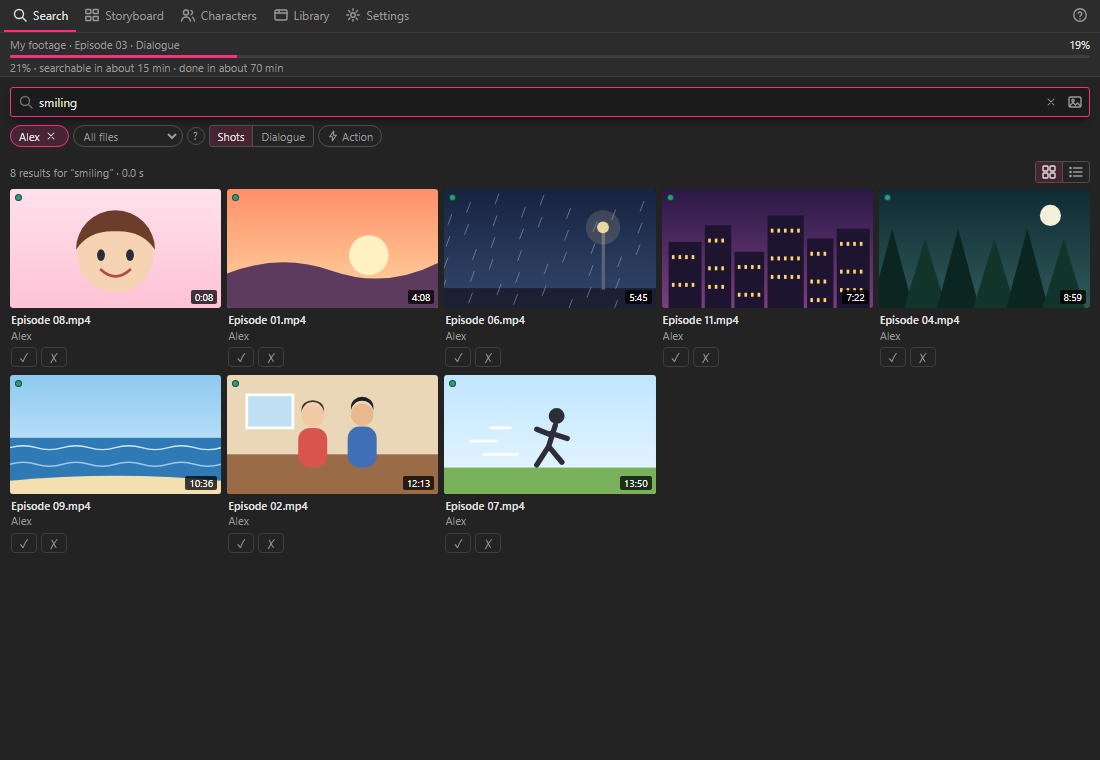
To remove the character, click the × on their label.
This works once characters have names. Potheon names some by itself; you can name the rest in a few clicks: see Name your characters. (Characters are part of Creator.)
Step 16: Search with a screenshot
Have a picture of the shot you want (a screenshot from a video, for example)? Potheon can find where it's from:
- click the small picture icon at the right-hand end of the search box and choose the image, or
- copy the image and press Ctrl + V in the search box, or
- drag the image onto the search box.
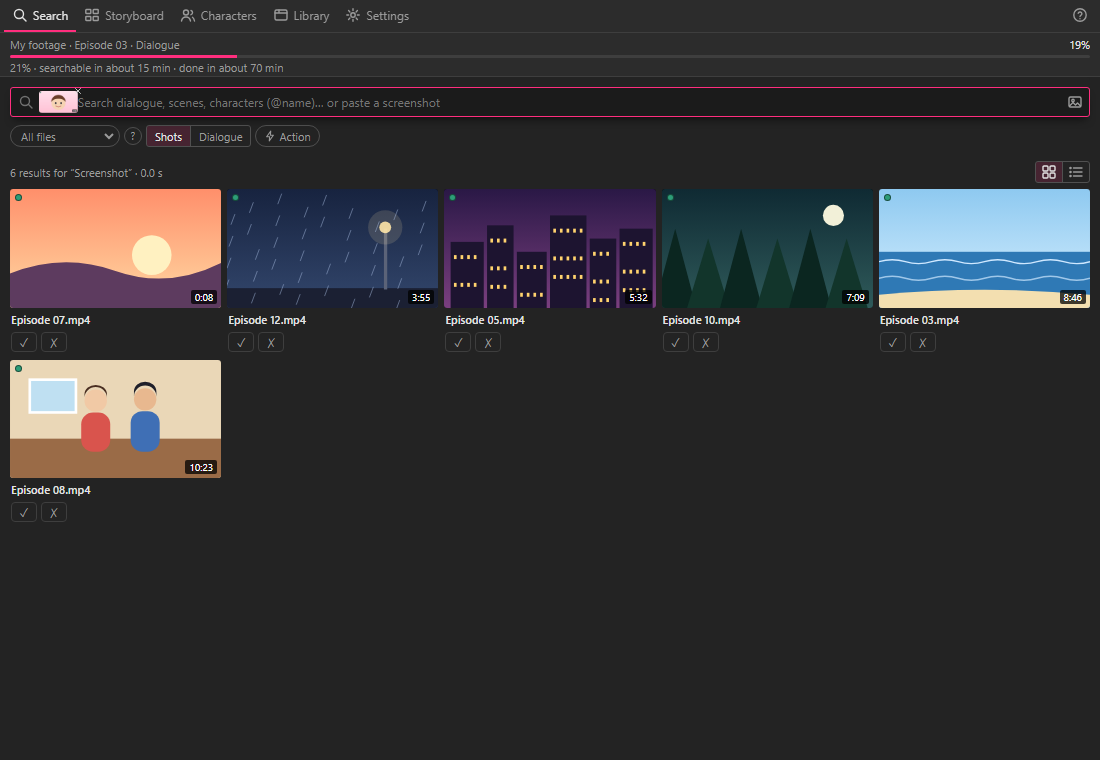
The picture appears at the start of the box, and the results are the shots that look most like it. To go back to typing, click the × on the small picture.
Tip: to take a screenshot of part of your screen, press Windows key + Shift + S and drag over the part you want. It's copied, ready to paste.
Step 17: Preview a result
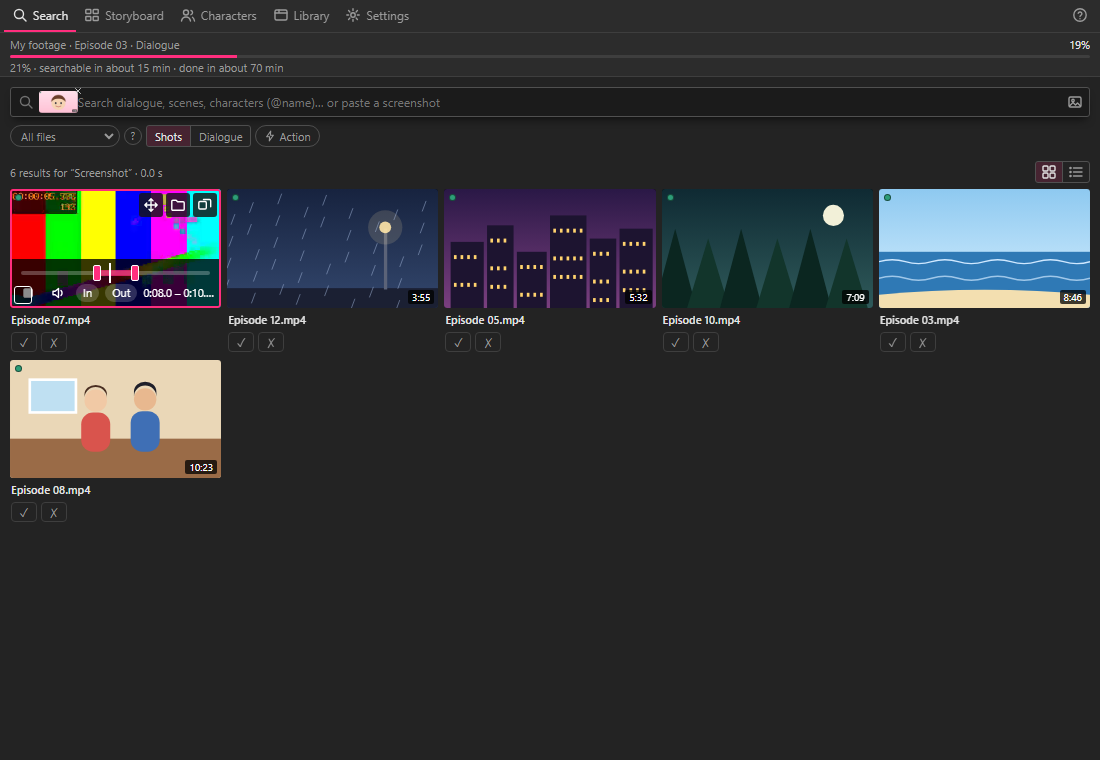
Double-click a result's picture. It plays the moment, over and over, with sound.
- Press Esc to stop.
- Press → or ← to play the next or previous result.
- In the desktop app, the preview also lets you make the clip longer or shorter: see Make a clip longer or shorter before you use it.
What next?
Now get the moments into your editing program:
- Premiere Pro: Use the Potheon panel in Premiere Pro
- After Effects: Use the Potheon panel in After Effects
- CapCut, Vegas Pro, DaVinci Resolve or anything else: Use the Potheon desktop app
Good to know
- Search gets better as the scan goes on. Character searches need the characters step to be done for that episode.
- Below the best results you may see "More results: these may match only part of what you searched for." Those are close, but not everything you asked for.
- The ✓ and ✗ under each result tell us whether it was right. They're optional, and they help us improve search: see Help improve Potheon.
- Something not working? See When something goes wrong.