Use the Potheon desktop app
This guide shows you how to use Potheon on its own, in its own window, and get the moments you find into any editing program: CapCut, Vegas Pro, DaVinci Resolve, or anything that takes video files.
How it works: you search in the Potheon window, then drag a result out and drop it into your editor (or into a folder). What arrives is a short video file of exactly that moment. Or pick several results and export them as a ready-made timeline.
You need Potheon installed and your footage added first: see Get started with Potheon.
Words used in this guide
- Clip: a short piece of video, cut out of a longer episode or film.
- Timeline: the strip in your editing program where you put clips in order.
- Tray: the small icons at the bottom right of your screen, next to the clock.
- XML and EDL: two kinds of file that describe a timeline (which clips, in which order). Editing programs can open them and build the timeline for you.
Step 1: Open Potheon
Click the Start button and click Potheon. If it's already running, click its icon in the tray instead.
Step 2: Search
Type what you're looking for in the search box at the top and press Enter. Pick Shots for something you can see, or Dialogue for something that's said. (More about searching: Get started with Potheon, Part 4.)
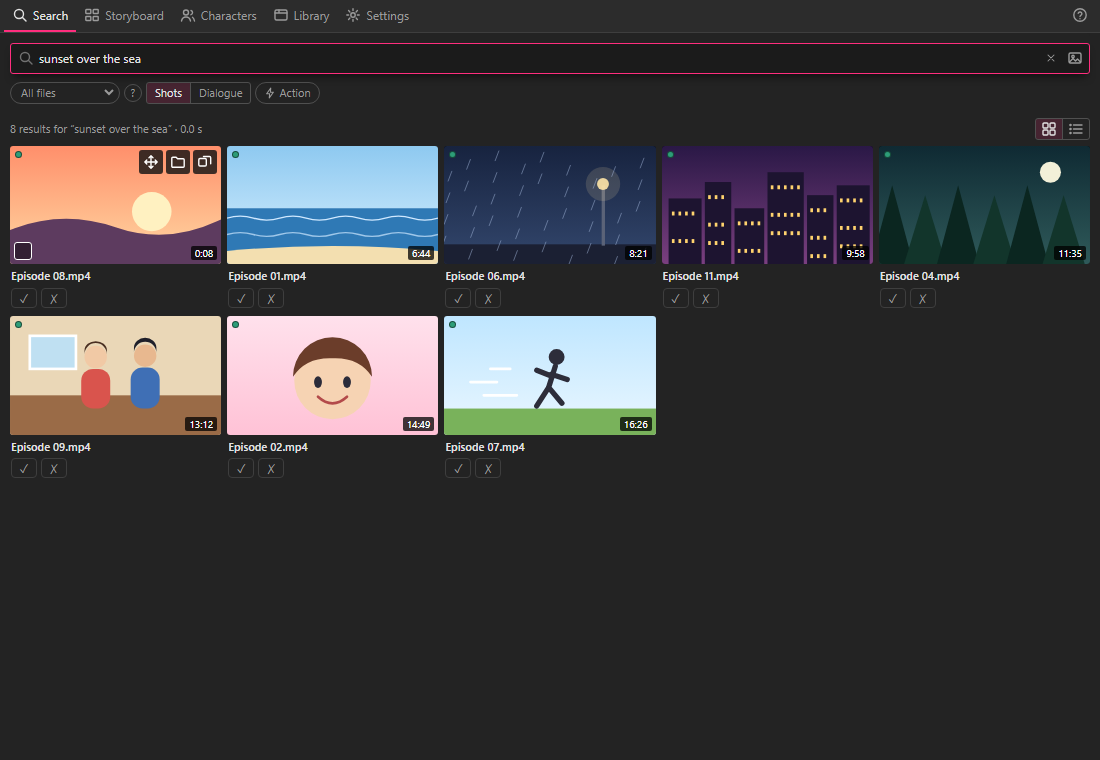
Step 3: Preview, and set where the clip starts and ends
Double-click a result's picture. It plays the moment on a loop, with a dark bar along the bottom to make the clip longer or shorter. Press Esc to stop, or → and ← to play the next or previous result.
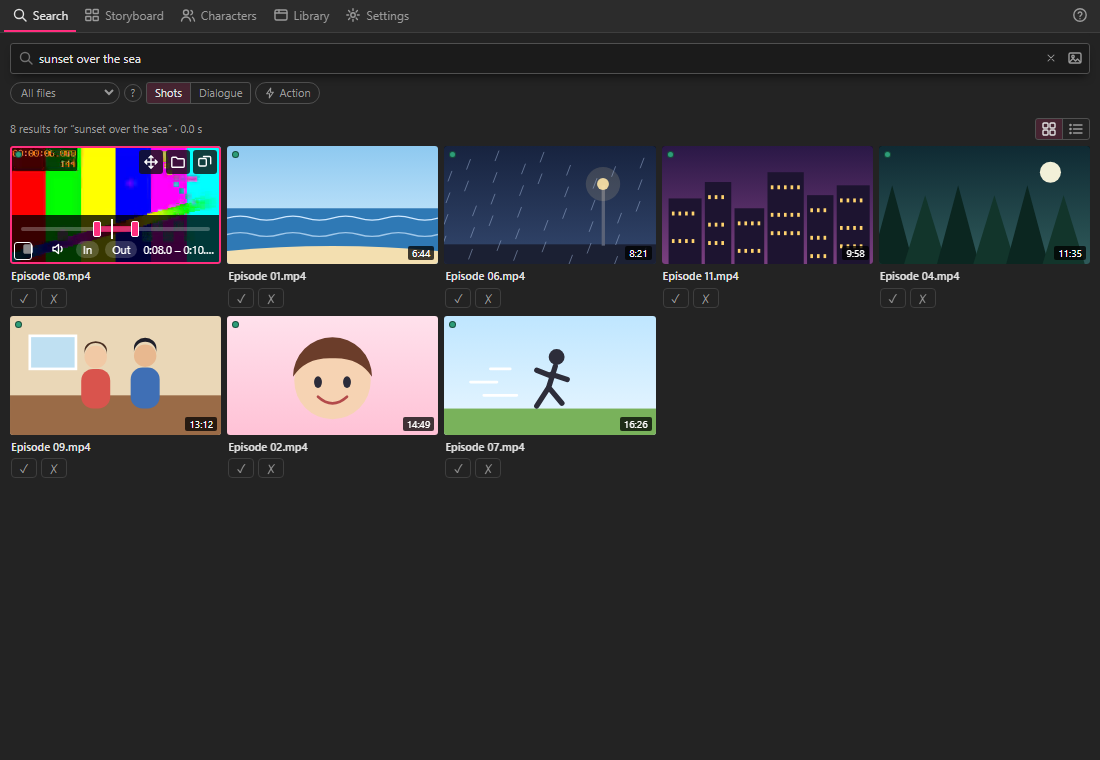
Most editors can make a dragged clip shorter, but never longer, so set the length here if you might want the line before or the reaction after. The full steps are in Make a clip longer or shorter before you use it.
Step 4: Find the buttons on a result
Point your mouse at a result. Small buttons appear at its top right, and a small square at its bottom left:
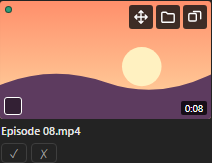
| Button | What it does |
|---|---|
| Four arrows (first) | Drag handle: hold it to drag the clip out |
| Folder (second) | Show the source file in Explorer: opens the folder with the episode |
| Two overlapping squares (third) | Find similar shots: more shots that look like this one |
| Square at the bottom left | Pick for export (see Step 6) |
Step 5: Drag the clip into your editor or a folder
Put your mouse on the result's picture (or on the four arrows), hold the left mouse button down, and move the mouse to where you want the clip. Let go:
- over your editor's timeline or media area, to add it there, or
- over a folder in File Explorer (or your desktop), to save a copy there.
If the picture says Preparing clip… when you start, keep holding the button: Potheon is cutting the clip, and the drag starts a moment later.
What you get is an MP4 video file with its sound:
- from a shot: exactly that shot, from its first frame to its last;
- from a line of dialogue: the line with half a second extra at each end;
- or exactly the start and end you set in the preview.
Step-by-step for one editor: Put clips into CapCut. It works the same way in Vegas Pro (drop onto the timeline) and DaVinci Resolve (drop into the Media Pool or onto the timeline). For Alight Motion, which runs on phones and tablets, drag the clips into a folder, then copy them to your phone.
Step 6: Pick several clips and export them as a timeline
To get many clips at once, already in order, export a timeline file. This needs the Creator plan (beta testers have it).
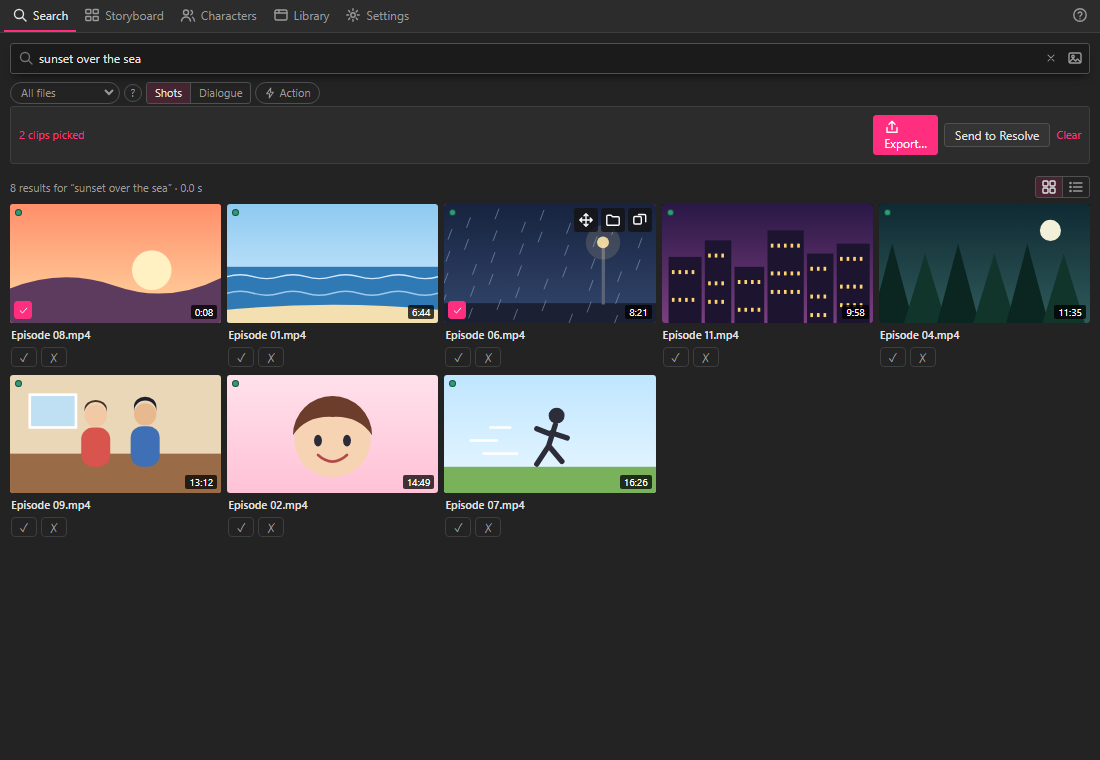
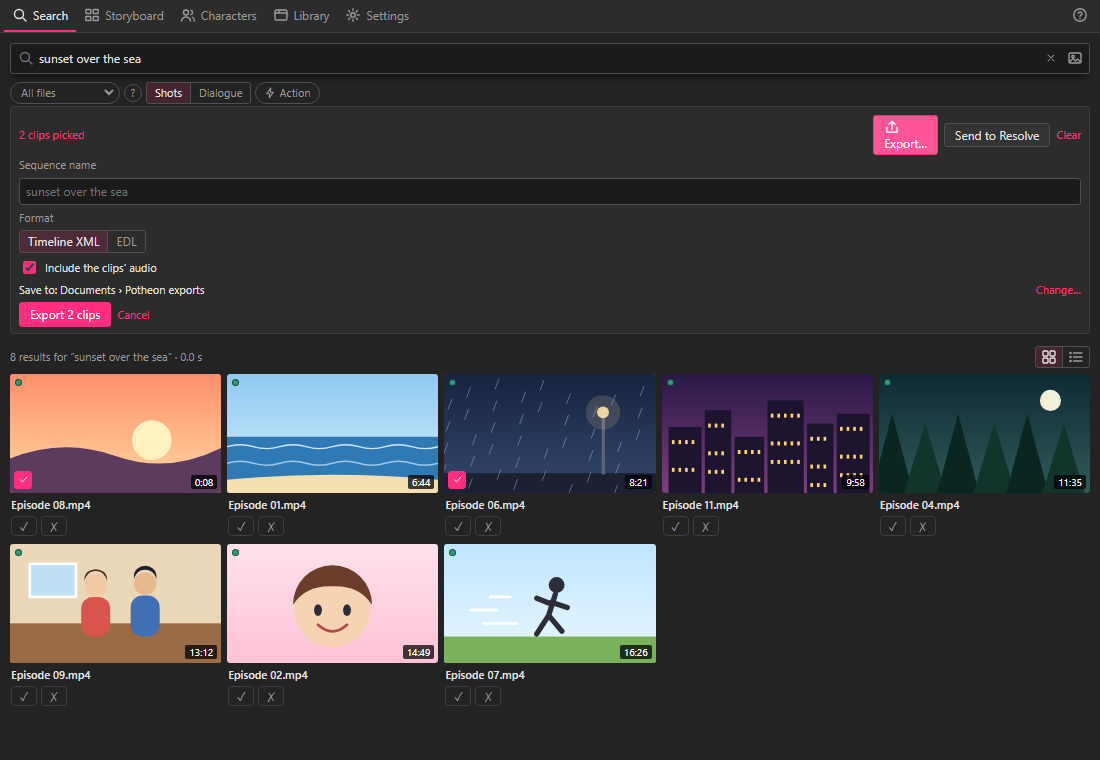
On each result you want, click the small square at the bottom left of its picture. It turns pink with a tick. Your picks are kept when you search for something else.
A bar appears above the results saying how many you've picked. Click Export….
Type a Sequence name (or keep the suggested one). Choose Timeline XML (best for DaVinci Resolve and Premiere Pro) or EDL (for other editors). Leave Include the clips' audio ticked, and click Export 2 clips (the number is how many you picked).
Potheon says where it saved the file, and how to open it in DaVinci Resolve and Premiere Pro.
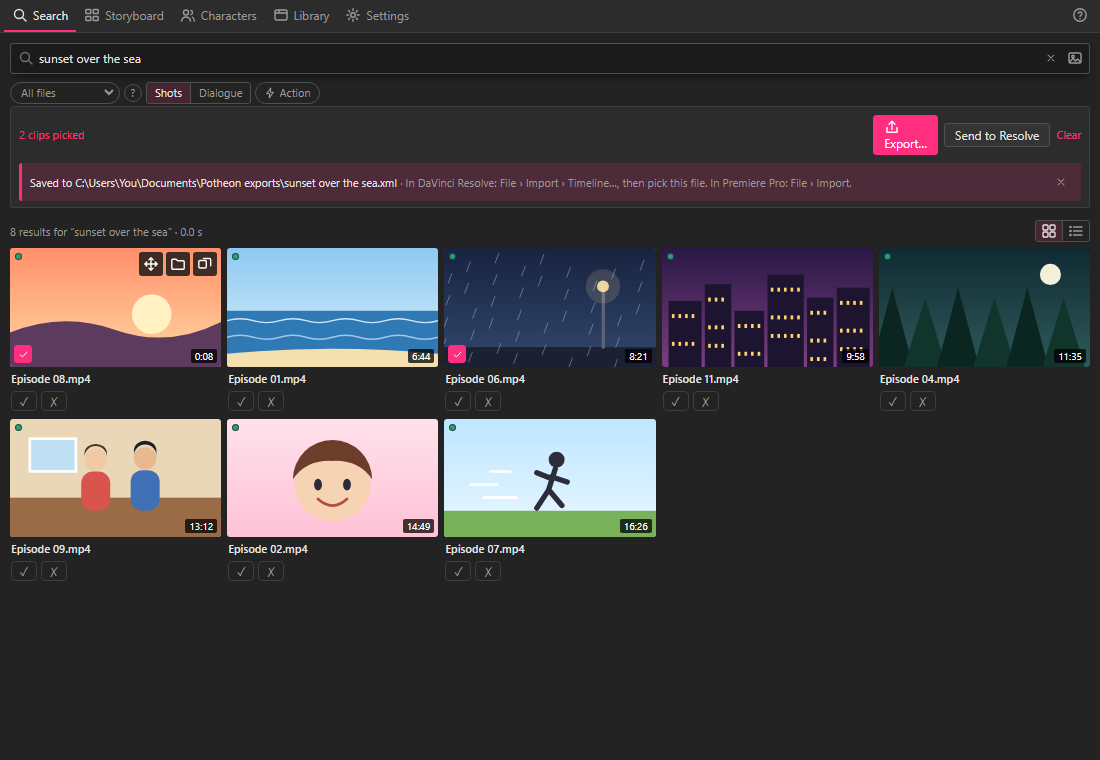
Exports are saved in your Documents folder, in Potheon exports. Click Change… in the export options to save them somewhere else.
The full steps for Resolve: Put a timeline into DaVinci Resolve.
Step 7 (DaVinci Resolve): Send to Resolve
With DaVinci Resolve on the same computer, there's a third way: click Send to Resolve in the same bar, and your picks appear in a folder in Resolve, each one the whole episode with its start and end already set. See Put clips into DaVinci Resolve (free version).
Potheon in the tray
Closing the Potheon window doesn't quit it. It keeps running in the tray at the bottom right of your screen, so a scan carries on. (If you don't see its icon, click the small ^ arrow next to the tray to show hidden icons.)
- Click the icon to open the window again.
- Point at the icon to see how a scan is going.
- When a scan finishes, Windows shows a notification: Scan finished.
- Right-click the icon for a menu:
- Open: opens the window.
- Start at login: when ticked, Potheon starts with Windows, hidden in the tray. Click it to turn this on or off.
- Check for updates: looks for a newer version now. (Potheon also checks by itself.)
- Quit: closes the window and the tray icon.
Good to know
- Potheon keeps every clip you drag out. Many editors don't copy a clip into your project: they use the file where Potheon made it. So Potheon never deletes a clip you've dragged out, and your projects keep working. The clips are in Potheon's folder (Settings › Storage shows where).
- Dragging the same clip again is instant: Potheon reuses the one it already made.
- Several clips? Drag them one at a time, or pick them and export (Step 6).
- Help: the ? at the top right of the window opens this guide.